CrossMelv 0.5.1
How to install.
About 10 minutes. Charge the reader to at least 50% first.
What’s on your reader now?
Tap yours. Not sure? Look at the menu language.
No laptop needed. You can do it all from your phone.
Put the file on the SD card
Download it. Easiest from your phone: on the reader open File Transfer, open the address it shows in your phone browser and upload the file. Or plug into a laptop with USB Drive.
Install it
Settings → System → SD Card Firmware Update, then pick the file.
Leave it 15 seconds
After it restarts, don’t touch it for 15 seconds. Done.
Download CrossMelv
Plug the reader into your computer
Use the magnetic cable that came with it, on a Windows or Mac laptop/PC. Open Google Chrome.
Open the installer
Go to crosspointreader.com/#flash-tools, pick X4 Pro → Custom .bin, choose the file you downloaded and press Flash.
Wait, then leave it 15 seconds
When the reader restarts, don’t touch it for 15 seconds. Done.
Don’t update the reader’s own system
If it offers an update, say no. A newer one can block the next step.
Follow the app
Open it and pick X4 Pro → Chinese → CrossPoint → OTA Flash. The app guides you step by step, just follow it.
Using a VPN app? Turn it off first.
Update the reader over Wi-Fi
On the reader, connect to the Wi-Fi called crosspoint, open System Update and install.
Stuck at 100%? Press Escape Hatch in the app.
Something went wrong?
Don’t panic. If it fails to start, it goes back to the old system by itself. You can also hold the Next page button and press Power, then pick another firmware file from the card.
Free · Recommended
Dictionary pack.
English to Indonesian and English to English, ready to use.
Unzip the file
You get one folder.
Copy the folder to your SD card
Just drop it in, not inside any other folder.
Long-press a word, tap Look Up
The meaning pops up.
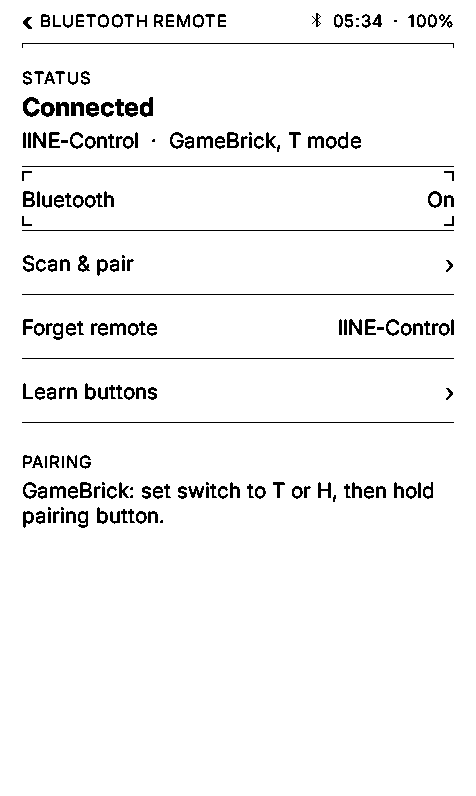
Connect an IINE GameBrick (optional)
Turn on Bluetooth
Settings → Controls → Bluetooth Remote → On
Switch the GameBrick to T
Hold its small button 3 seconds
Until the light blinks fast.
Tap Scan & pair → IINE-Control
B = next page, A = back.
Questions
Does it work on the X3, X4 or X4 Classic?
Not yet. Only the X4 Pro.
Is it safe?
Yes. If anything goes wrong, it goes back to the old system by itself. It is unofficial, so install at your own risk.
Will I lose my books?
No. Your books stay on the card.
Can it open books bought on Kindle or Google Play?
No, those are locked. Use normal EPUB files.
A book has no chapters. Can I fix it?
Yes, with the EPUB fixer.
How do I add a dictionary?
Download the dictionary pack, unzip it and copy the folder to the SD card.
How do I update later?
Same as the “CrossPoint / CrossInk” steps: download the new file and install it from the SD card.
How do I go back to CrossInk or CrossPoint?
Same 3 steps, just pick their file instead.
For tech people (optional)
Check the file: SHA-256 must be da5e081c37c076c1adbb9b7d9fe05f41b8d05f9bcb53afea6eab6d5d5117fe99 (shasum -a 256 crossmelv-0.5.1-x4pro.bin).
Chip: ESP32-S3. Writes only the app slots; bootloader, partitions and eFuses are untouched. Source code (GPLv3) is in the download section.
Support
Free. Always.
If CrossMelv makes your reading better, buy me a coffee. It keeps the updates coming.
QRIS · GoPay · OVO · DANA · bank transfer